
If you buy through affiliate links, we may earn commissions, which help support our product reviews.
Last Updated: Feb 16, 2026
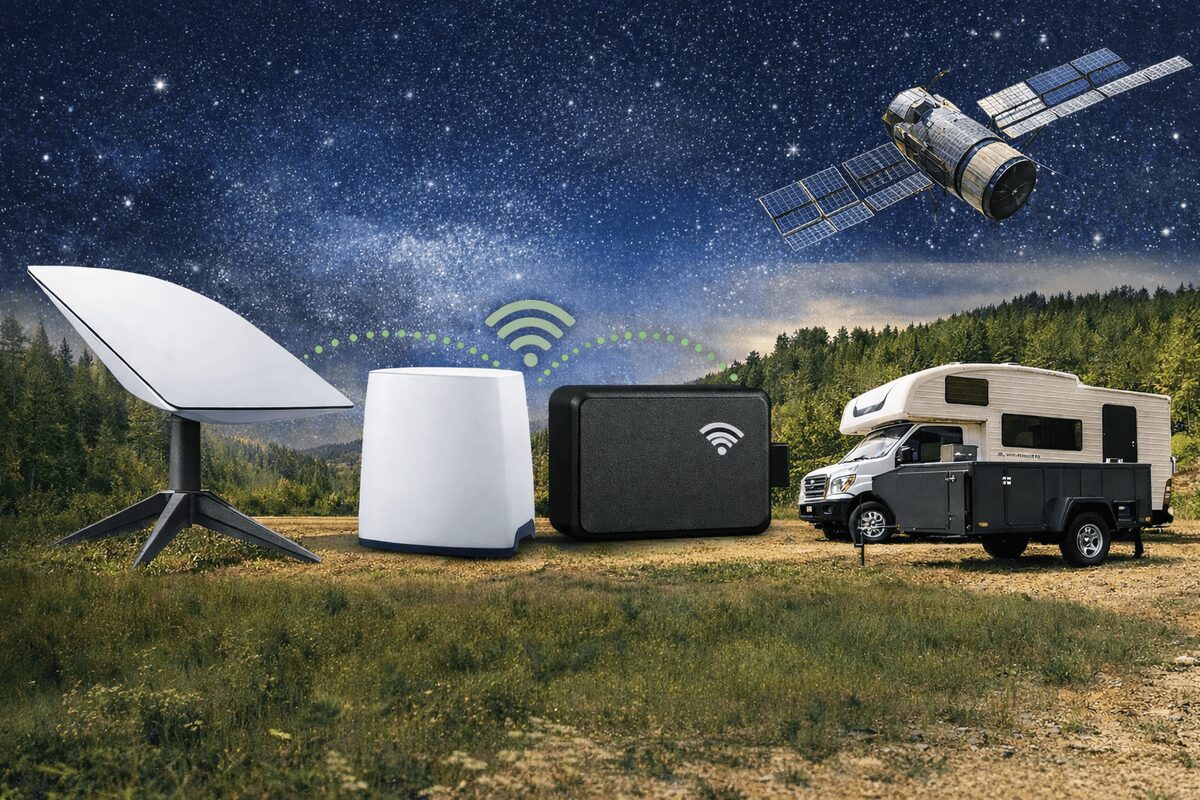
If you already use Starlink to get internet in remote areas, you can pair it with a Wi-Fi GPS tracker that works with Starlink to track vehicles, boats and assets without cellular service and without monthly subscription fees.
Quick answer: A GPS tracker “works with Starlink” if it can upload GPS data over Wi-Fi. Starlink provides the Wi-Fi internet connection; the tracker uploads if it’s in range of your Starlink router (or mesh / access points connected to it).
Table of contents
- What “works with Starlink” really means
- Who this setup is best for
- Wi-Fi tracking vs cellular tracking
- How Trakkit Wi-Fi GPS tracking works
- How to set up a GPS tracker with Starlink
- Best practices for range, reliability, and installs
- FAQs
What “works with Starlink” really means
Starlink gives you internet via a local network (Wi-Fi). A Wi-Fi GPS tracker can use that network to send location updates to the cloud.
Important: Wi-Fi GPS tracking is not the same as “live tracking everywhere.” If the tracker leaves Wi-Fi range, it can keep logging GPS points and then upload later when it reconnects.
Who this setup is best for
- Remote job sites: track trailers, generators, reefers, tool boxes, and vehicles parked on-site with Starlink coverage.
- RVs / overland camps: upload location logs whenever you set up Starlink at camp (and get alerts when you’re connected).
- Yards & compounds: place Starlink on a building/office and extend Wi-Fi coverage with mesh nodes or outdoor access points.
- “No monthly fee” buyers: avoid SIM cards and recurring tracker subscriptions when you already have Starlink internet.
Wi-Fi GPS tracking vs cellular tracking
Most GPS trackers use cellular networks (SIM cards) and charge monthly fees. Wi-Fi GPS tracking flips that model: the device uses Wi-Fi when available, and can store GPS points locally in between connections.
Choose Wi-Fi GPS tracking if: you mainly need alerts and location history at a Starlink-equipped site, or you want “no subscription” tracking that uploads whenever it can.
Choose cellular/satellite tracking if: you need continuous real-time location updates everywhere, including long stretches with no Wi-Fi.
How Trakkit Wi-Fi GPS tracking works
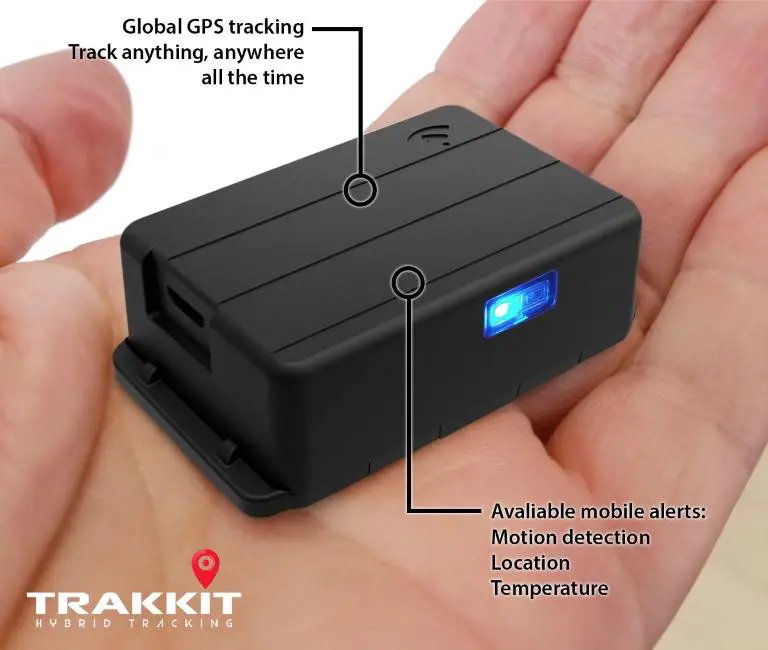
Trakkit is a true Wi-Fi GPS tracker designed for customers who want tracking features without cellular service or subscription fees.
- No SIM card / no cellular required: data uploads over Wi-Fi.
- GPS tracking + GPS logging: it can record location points and upload when it’s back in Wi-Fi range.
- Alerts: motion/vibration and geo-fence alerts when configured.
- Apps: view and manage devices from mobile and desktop.
This makes it a strong match for Starlink: you’re using Starlink as your “internet backhaul,” and Trakkit as the tracker that uploads over your Starlink Wi-Fi network.
How to set up a GPS tracker with Starlink
Step 1: Make sure your Starlink Wi-Fi reaches the asset
Start by checking Wi-Fi signal strength where your trailer/vehicle/equipment sits. If needed, extend coverage using Starlink Mesh or a third-party router/mesh system connected to Starlink.
Step 2: Install and power the tracker
Place the tracker where it can stay hidden and secure. For vehicles or long-term installs, consider external power options (when applicable) so you’re not relying only on batteries.
Tip: If your asset is exposed to weather, use an appropriate enclosure and mounting method.
Step 3: Connect the tracker to your Starlink Wi-Fi
Connect the device to your Starlink network (or the Wi-Fi network connected to Starlink). If you split Wi-Fi bands, make sure the tracker joins the 2.4GHz network for longer range.
Step 4: Choose the right mode (Tracking vs Logging)
- Tracking mode: sends updates when Wi-Fi is available.
- Logging mode: records GPS points and uploads later when it reconnects.
Step 5: Set geo-fences and alerts
For remote sites, geo-fences are usually the #1 win: get alerted if a trailer moves outside a defined area, then use the last known location + subsequent uploads to support recovery.
Best practices for range, reliability, and installs
- Prefer 2.4GHz for range: it typically reaches farther than 5GHz and is better for yards and outbuildings.
- Use mesh/access points for large areas: if your trailer lot is bigger than a single router’s coverage, add nodes to remove “dead zones.”
- Think in “upload zones”: you don’t always need continuous live tracking—many customers mainly need alerts + history + last-known location.
- Decide what you’re optimizing for: anti-theft recovery, usage history, fleet oversight, temperature logging, etc.
FAQs
Will a Wi-Fi GPS tracker work while driving?
It can provide real-time updates when it detects Wi-Fi networks, and it can also record GPS points and upload them later. If you require continuous live tracking everywhere, you’ll want a cellular or satellite tracker instead.
Do I need Starlink for this to work?
No—Starlink is just one way to provide internet via Wi-Fi in remote places. This also works with home Wi-Fi, mobile hotspots, and site Wi-Fi. Starlink is ideal when cellular coverage is weak.
How far can it connect from the Starlink router?
Wi-Fi range depends on placement, obstacles, and interference. For larger properties, add mesh nodes or a third-party Wi-Fi system connected to Starlink to extend coverage where your assets sit.
Is Trakkit waterproof?
For outdoor or exposed installs, use a protective enclosure suitable for the environment.
Is this affiliated with Starlink/SpaceX?
No. Starlink is a third-party service you can use as the internet connection for Wi-Fi-based GPS tracking.
Next step
If you want a GPS tracker that can upload over Wi-Fi (no SIM, no cellular, no monthly fees) and you already run Starlink at a remote site, this approach is a simple way to get practical tracking + alerts.